
Horses of Hoofprint Bay: Controls, Praise & Switching Paths
Learn about Horses of Hoofprint Bay controls, including reported riding keys, path switching, rebinding, and confirmed auto-jump accessibility.
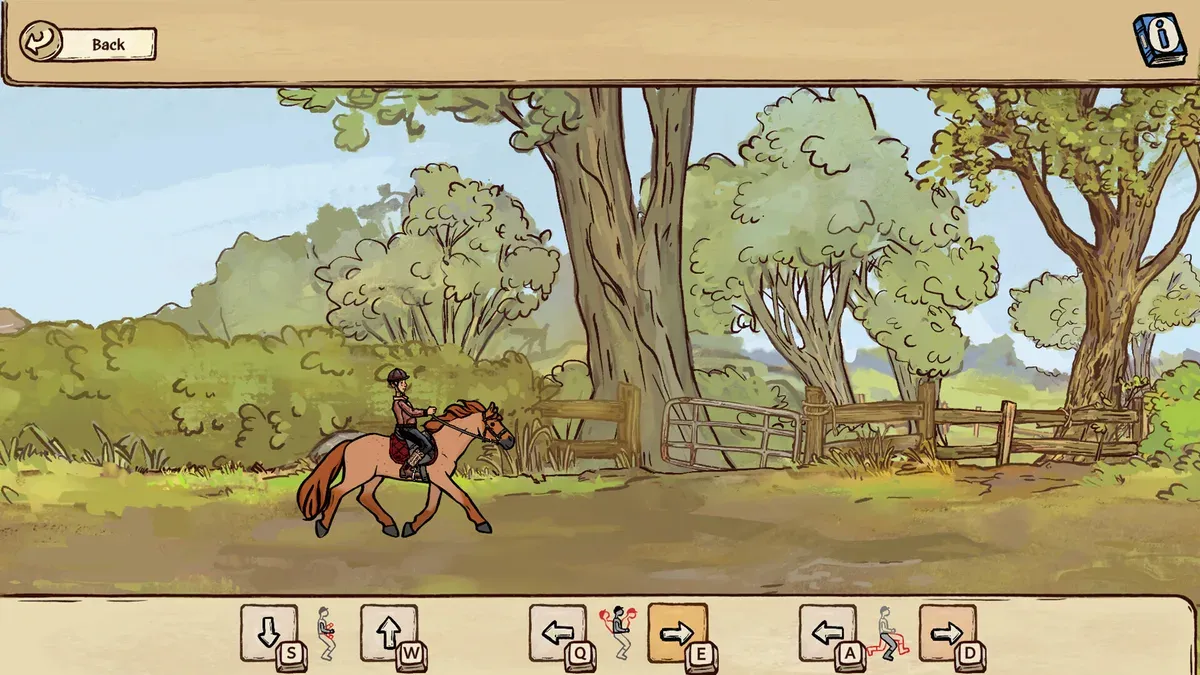
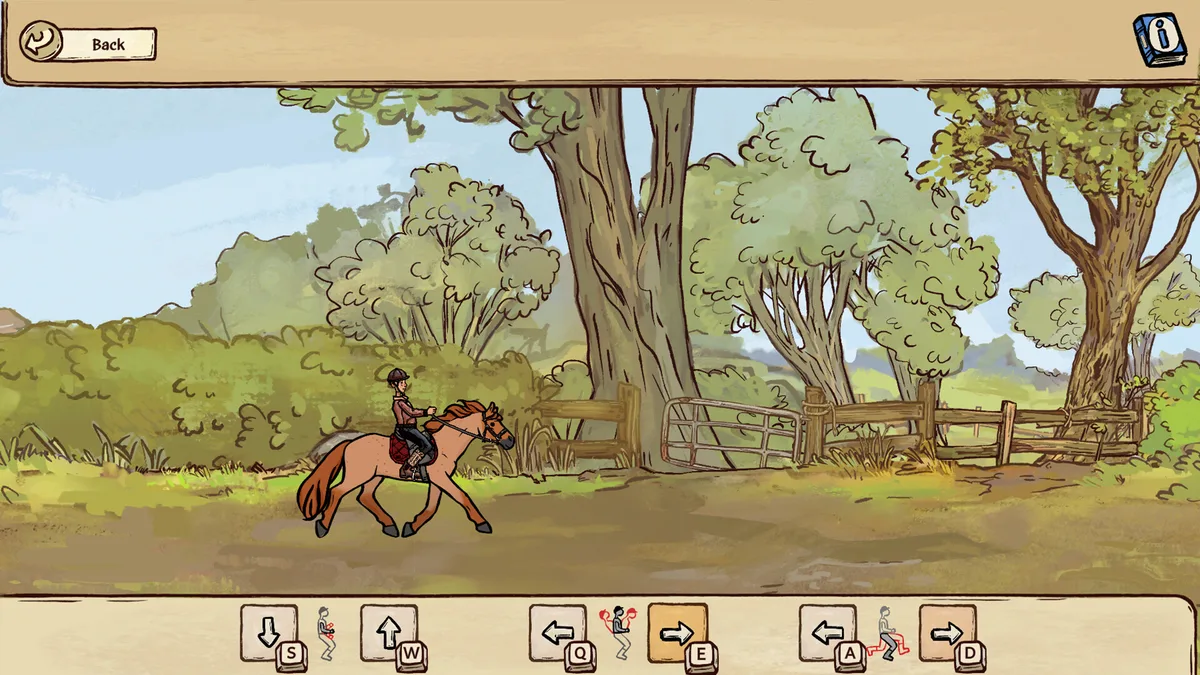
Image: official Steam catalog screenshot. Source: verified Steam listing.
Watch the related YouTube video: Horses of Hoofprint Bay – OUT NOW — thogli studios.
Official launch trailer used as general reference for the full game. It is not a dedicated tutorial, device benchmark, or proof of an individual mechanic.
Start with the riding controls players report
If the path-switch icon looks like a U, community reports identify it as Spacebar. Community reports describe Horses of Hoofprint Bay controls for riding as WASD and Spacebar, with keys that can be rebound. Checking those Horses of Hoofprint Bay controls against your own settings matters because a clear, comfortable setup makes riding prompts easier to follow.
This guide uses supplied reference material dated November 5, 2026, covering the game’s November 4, 2026 Steam release. The release date appears in the official Horses of Hoofprint Bay Steam listing. This is a source-based draft; the individual bindings have not been independently playtested.
The available evidence supports a useful starting point, but it does not provide an official, complete keyboard chart:
| Control or feature | What the sources establish | Evidence |
|---|---|---|
| Riding keyboard inputs | Players describe WASD and Spacebar | Community reports |
| Key rebinding | Players say riding keys can be reassigned | Community reports |
| Pressing versus holding | A player describes single inputs instead of continuously holding keys | Player experience |
| Switching paths | Players identify Spacebar | Community reports |
| Auto-jump | An accessibility option recommended for jumping difficulties | Official FAQ |
Treat this controls overview as a reference for checking your setup. The reports do not identify every action attached to W, A, S, or D, so assigning individual directions or gait changes to those keys would go beyond the evidence.
The distinction is useful when following advice: a reported key gives you something to check, while your active settings show what you have configured. Rebinding may explain why another player’s suggested input differs from yours.
Controls: switching paths
Spacebar is the community-reported button for switching paths. In a discussion specifically about the path-switch prompt, a player described an icon resembling a lowercase U. Both supplied replies identified the space key.
That answers the immediate question, although it does not establish a universal binding across customized setups. If you have changed your keys, check your current configuration before relying on the reported input.
| What you are seeing | What the evidence says | Practical next step |
|---|---|---|
| A path-switch symbol that resembles a U | Players identify the symbol as Spacebar | Compare the prompt with your current bindings |
| A path-choice prompt during riding | Spacebar is the reported switching input | Try the reported key when that prompt appears |
| A different active binding | Rebinding is reported by players | Follow the assignment shown in your settings |
A sensible input check is straightforward:
- Read the path-choice prompt when it appears.
- Check your bindings if the symbol is unclear.
- Try Spacebar if your setup matches the community-reported controls.
- If you have customized inputs, use the relevant assignment shown in your settings.
The supplied discussion does not specify an exact activation window, how long a path choice remains available, or whether repeated presses cycle through options. There is also no verified troubleshooting procedure for an unresponsive path prompt.
If the expected input does nothing, checking the displayed prompt and active assignment is a useful first investigation. It is a way to establish which control applies, rather than evidence that a particular bug or fix exists.
Check and rebind your riding inputs
When setting up controls, start by reviewing the available input assignments in settings. Community reports say the keys can be rebound, but the cited material does not document the exact menu title, every remappable action, or which alternative inputs are accepted.
That makes a settings-based check more reliable than copying an assumed keyboard layout. Focus first on the actions you need during riding and whether their assigned keys are comfortable to reach.
| Check | What to do | What you learn |
|---|---|---|
| Current assignments | Read the riding bindings available in settings | Which keys your installation currently uses |
| Comfortable placement | Review the rebinding options for awkward keys | Whether a preferred assignment is available |
| Input behavior | Try a brief press during a riding activity | Whether that action needs continued input |
| Path switching | Compare the path prompt with your configuration | Whether the reported Spacebar input applies |
| Jump assistance | Look for the auto-jump accessibility option | Whether you can reduce manual jump timing demands |
Change one assignment at a time, then try the relevant action. This is an input-check workflow, not a claim about how the game stores or applies settings. The reference material does not establish whether changes require a separate confirmation button.
Keep the scope of the rebinding report in mind. Saying that keys can be reassigned does not prove support for every mouse button, every key combination, or every accessibility device. Those details need to be checked in the options actually available to you.
The player comment about single inputs also deserves careful reading. It describes riding without continuously holding keys, but it does not explain each individual action. Test the behavior of the action you are adjusting before assuming that every riding control behaves identically.
For a useful personal reference, note the assignments you actually use for riding and path choices. That gives you a concise control reminder grounded in your configuration.
Riding pace, timing, and auto-jump
Auto-jump is the clearest officially confirmed assist for controls. The official FAQ’s difficulty and auto-jump guidance recommends enabling it when jumping is difficult and also confirms adjustable competition difficulty.
Community reports place auto-jump under accessibility settings. A player explains that it handles precise jump timing while the rider continues managing the horse’s speed and strength. That description helps explain its practical value, although the detailed behavior remains player-reported.
Does riding require timed input?
Player experience suggests that some riding tasks ask for pace changes at particular moments, while others require a change before a marked location. One player found the timing forgiving, but that is a personal assessment rather than a measured timing window.
The supplied Steam listing also includes an accessibility designation indicating play without timed input. That listing supports the availability of accessibility accommodations; it does not explain the requirements of every activity or setting combination.
| Option or behavior | Supported information | What remains unspecified |
|---|---|---|
| Auto-jump | Officially available as an accessibility assist | Exact behavior in every riding activity |
| Easier competitions | Confirmed in the official FAQ | Which underlying checks change |
| Pace-change timing | Players describe both timed changes and changes before markers | Exact timing windows |
| Speed and strength management | Players say these remain relevant with auto-jump | A complete list of remaining inputs |
Choose the setting that addresses the difficulty
If pressing a button at the jump moment is the difficult part, auto-jump is the directly relevant option to try. If competitions feel too demanding overall, the official FAQ recommends experimenting with easier competition settings.
These options address different concerns, so it helps to evaluate them separately. Try auto-jump and observe what riding still asks you to manage. Then consider competition difficulty if the remaining challenge is uncomfortable.
Avoid assuming that easier competitions necessarily extend every timing window. A forum participant suggested that possibility, but the cited official material does not confirm the mechanism.
Likewise, auto-jump should not be treated as automatic riding. The available player experience specifically describes continued attention to speed and strength. Its value is reducing the need to time jumps yourself, while leaving other riding decisions relevant.
Can you play with a mouse or controller?
The available controls reports do not establish a complete mouse-only setup. The controls discussion began with a question about mouse movement, but the response described keyboard riding inputs and rebinding.
The phrase about clicking once is not enough to prove click-to-move functionality. In context, the player was contrasting individual inputs with holding keys down. It should not be expanded into a claim that you can steer, change pace, and choose paths entirely with the mouse.
| Input question | Supported answer |
|---|---|
| Can riding use a keyboard? | Community reports identify WASD and Spacebar |
| Can keyboard bindings be changed? | Community reports say they can |
| Is mouse-only riding confirmed? | No confirmation appears in the cited material |
| Are individual mouse interactions documented? | No complete mouse-control reference is supplied |
| Is standard gamepad support confirmed? | The cited material does not establish it |
The official store describes grooming and horse-care interactions, but it does not specify their mouse gestures or buttons. There is therefore no supported basis here for instructions such as holding a mouse button to brush or dragging a particular tool.
Controller support also remains unconfirmed in these references. A development update mentions a custom saddle controller used at an event, but that demonstration does not establish standard gamepad compatibility.
If a particular input method is essential for you, the useful question is whether it covers every action you need. Rebinding and auto-jump provide promising options to investigate, but neither alone confirms a fully mouse-operated or controller-operated setup.
FAQ
What are the basic controls?
Community reports identify WASD and Spacebar for riding and say the keys can be rebound. The supplied references do not provide a complete official action-by-action key map. Review your active settings for individual assignments, particularly if you have already customized the keyboard layout.
How do you switch paths in Horses of Hoofprint Bay?
Players identify Spacebar as the path-switching input. This directly addresses a community question about a prompt that looked like a U. Check your active bindings if you have reassigned keys. The supplied discussion does not document a precise timing window or the behavior of repeated presses.
Do you need to hold down the riding keys?
One player describes using individual inputs instead of continuously holding riding keys. Treat that as player experience rather than a guarantee covering every action. A brief test of each relevant control will help you understand its behavior with your current configuration and activity.
How do you make jumping easier?
Enable the auto-jump accessibility setting, which the official FAQ recommends for players who struggle with jumping. Community reports locate it under accessibility and describe continued speed and strength management. Easier competition settings are also officially available, although the references do not specify exactly how those settings alter competition requirements.
What should you read next?
- Horse Care & Grooming Guide
- Horse Training & Confidence Guide
- Horse Breeding & Genetics
- Beginner Guide: Your First Days
Return to Getting Started or the wiki homepage to choose another topic.
Related Articles
guides
Horses of Hoofprint Bay: Steam Achievements Guide
Plan Horses of Hoofprint Bay achievement goals across breeding, training and competition wins. Find confirmed milestones and help with disabled achievements.
guides
Horses of Hoofprint Bay: Achievements Disabled: What to Check
Learn why save editing disables achievements, how launch issues differ, and what to check before risking your Horses of Hoofprint Bay progress.
guides
Horses of Hoofprint Bay: Apple Tree: Demo Location Guide
Find the Horses of Hoofprint Bay apple tree using the February Demo route, learn when to stop, and understand the reported picking issue.
Was this helpful?
Thanks for the feedback!