
Horses of Hoofprint Bay: Steam Deck Setup & Controls
Set up Horses of Hoofprint Bay on Steam Deck with publisher-backed controls, Proton troubleshooting, and clear details on controller support.
Can you play on Steam Deck at launch?
Horses of Hoofprint Bay Steam Deck play is possible, according to the publisher, and the game’s artist already uses the handheld. Proper controller support was still unfinished in the publisher’s November 2 reply, making control adjustments especially useful for menus and lessons. This Horses of Hoofprint Bay Steam Deck guide explains the recommended setup, common input problems, and what to expect from the full release.
The game launched on November 4, 2026. This guide covers the global Steam release, app 3727090, with information current through November 5. The publisher’s practical advice comes from its release-week questions and answers.
| Compatibility question | What is established |
|---|---|
| Can it be played on Steam Deck? | The publisher says yes, with adjustments, and reports that the artist plays this way. |
| Does the game support Linux? | The Steam store lists Linux support and includes SteamOS in its requirements. |
| Is proper controller support implemented? | It was not implemented as of the publisher’s November 2 reply. |
| Is a Valve compatibility badge confirmed? | A Steam Deck Verified or Playable badge is not established here. |
| Is sustained performance measured? | No measured Steam Deck benchmark is available in this information. |
These distinctions matter. Linux support describes the operating systems the game supports. Steam Input lets you adapt handheld controls to keyboard and mouse actions. Valve’s compatibility badge is a separate assessment.
The official Horses of Hoofprint Bay Steam store page confirms Linux and SteamOS support, but that alone does not establish comfortable controller navigation. Expect to configure inputs and use pointer or touchscreen interaction where needed.
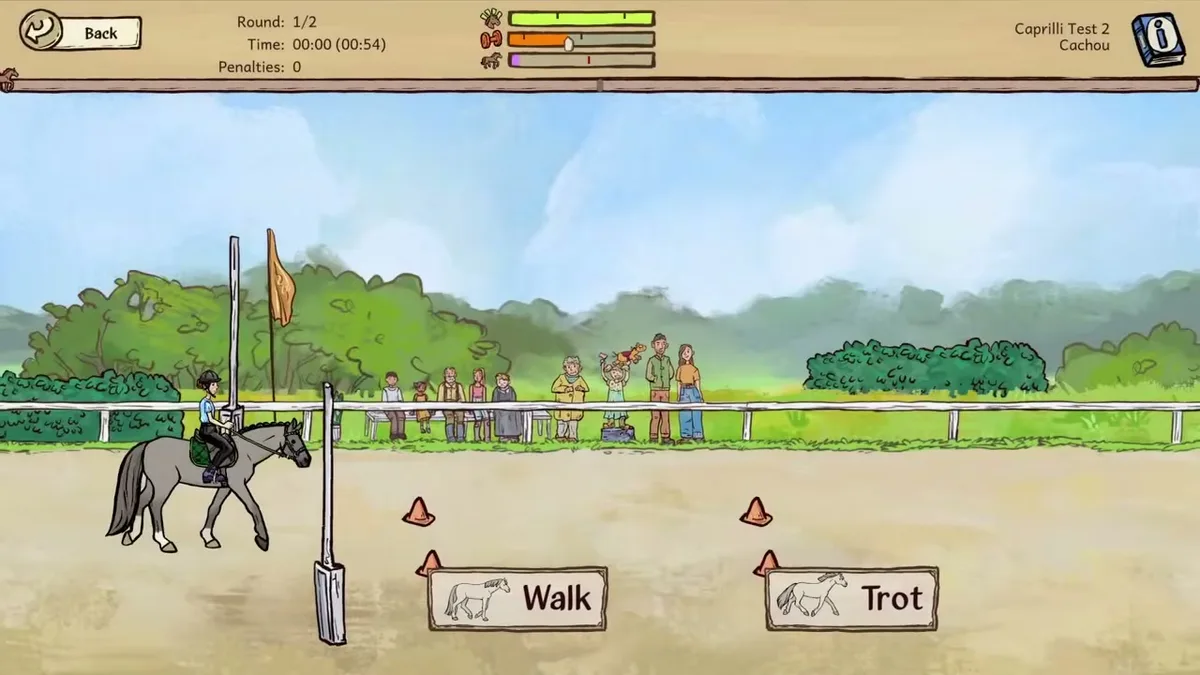
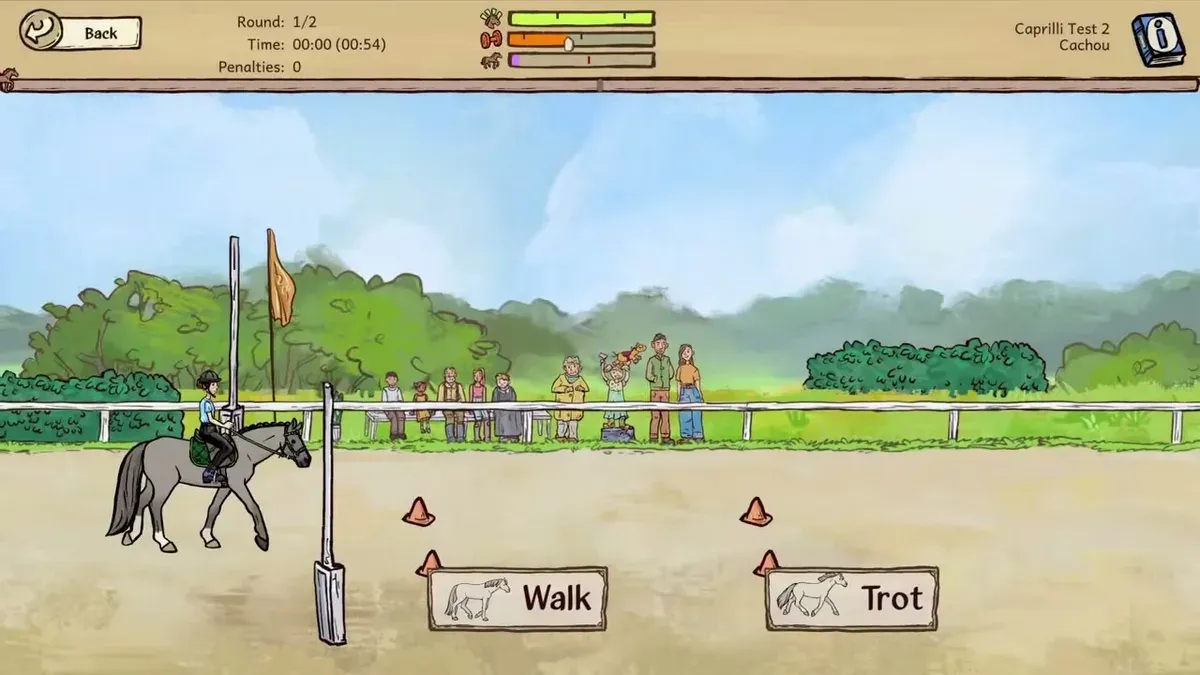
Unaltered gameplay still from JayPlays’ full-release video. General visual context, not proof of an undocumented mechanic. Image source.
Full-release gameplay and in-game handbook: Horses of Hoofprint Bay FULL RELEASE! Starting Our Horse Stable! 🐎 — Rohara, November 4, 2026. English-language reference footage. Specific handbook claims link to their observed timestamps; other uses are general game reference, not a device benchmark or proof of a bug fix.
Steam Deck controls and setup
Start with the WASD + Mouse control scheme recommended in the publisher’s release-week guidance. It provides the foundation for movement and jumping, with a few adjustments needed for leaving screens and handling lesson inputs.
The most useful change is assigning Escape to B. That gives you a convenient way to leave screens or tools while keeping the core riding controls accessible.
| Action | Publisher-supported setup | Detail to remember |
|---|---|---|
| Movement | Directional arrows or left stick | Use the WASD + Mouse scheme as the starting point. |
| Jump | A button | This is the jump button described in the setup. |
| Leave screens or tools | Map B to Escape | Add this binding for convenient exits. |
| Lesson arrow inputs | Use the directional controls | The torso input is the exception requiring attention. |
| Lesson torso controls | Map to the back triggers | The publisher does not specify an exact key assignment in this guidance. |
| Alternative lesson interaction | Use the touchscreen | This provides another way to operate onscreen controls. |
A sensible setup sequence follows those recommendations:
- Select the WASD + Mouse scheme.
- Check movement and the A-button jump input.
- Bind B to Escape.
- Check the lesson controls, including torso movement.
- Assign torso actions to the back triggers, or use the touchscreen.
The lesson exception is easy to miss. Getting movement and jumping working does not mean every training input is covered. If a lesson appears to ignore your input, check whether it needs a torso action before assuming the entire layout is broken.
Community reports also describe using the trackpad as a mouse. One February player experience specifically mentions remapping controls and navigating with the trackpad, while another describes relying heavily on touch input. Those are older demo experiences, so treat them as alternative interaction ideas rather than proof of full-release behavior.
Keyboard prompts may also remain visible when using a mapped layout, as players reported during the demo period. Keeping track of your bindings is useful when the displayed instruction names a keyboard key instead of a Deck button.
Fix drag-and-drop, flickering, and keyboard problems
Steam Deck troubleshooting should begin with the specific interaction that fails. The publisher identifies different adjustments for drag-and-drop problems, display flickering, and lesson controls; one change should not be assumed to solve all three.
| Problem | Suggested response | What the advice establishes |
|---|---|---|
| Drag-and-drop does not work | Try Proton Experimental | The publisher recommends this for the interaction failure. |
| The display flickers | Try FPS and VSync adjustments | These are troubleshooting suggestions, without a guaranteed setting. |
| Lesson torso input does not respond | Bind torso actions to back triggers or use touch | This addresses the known gap in the suggested layout. |
| Leaving a screen or tool is awkward | Map B to Escape | This supplies a convenient exit input. |
| Capital letters fail on the onscreen keyboard | Recognize it as a reported input issue | No confirmed capitalization fix is provided. |
When to try Proton Experimental
The publisher specifically recommends Proton Experimental when drag-and-drop fails. That is a useful reason to try the compatibility option, even though the store also lists Linux support.
Native Linux support and a Proton workaround answer different questions: the first concerns platform availability; the second offers an alternative route when a particular interaction misbehaves. Neither guarantees that every screen will work perfectly.
Older community reports also recommend Proton Experimental, but they predate the full release. The release-week publisher advice gives the drag-and-drop recommendation stronger relevance than those earlier player experiences alone.
What to change for flickering
Try the suggested FPS or VSync adjustments if you encounter flickering. The publisher mentions 60 FPS as a setting to try, not as a measured result or a promise that the game maintains that frame rate.
There is no confirmed combination of frame limit and VSync settings that can be presented as the universal solution. Keep the goal specific: resolving the visible flicker on your device.
What is known about typing
The publisher acknowledges that capital letters can fail with the onscreen keyboard. Earlier community reports describe opening that keyboard with Steam + X, with one player still unable to enter capitals.
Opening the keyboard and fixing capitalization are separate issues. Steam + X is a reported way to access text entry; it is not a confirmed solution for uppercase letters.
An older discussion also includes a black-screen crash report. That predates release and does not establish a widespread launch problem or a verified crash fix.
Performance expectations and easier riding options
The main Steam Deck consideration is how comfortable you are adapting the controls. The publisher’s report establishes that handheld play is possible, but it does not provide measured frame rates, battery duration, or a complete graphics preset.
There is therefore no evidence-backed “best performance” profile to copy. The 60 FPS suggestion belongs to flicker troubleshooting. It cannot support claims about sustained performance during riding, grooming, competitions, or stable management.
Your preferred input style also matters. The game includes horse care, training, breeding, building upgrades, and management screens. A layout that feels comfortable during a ride may still need touch or pointer interaction elsewhere.
If jumping is the frustrating part, the game offers auto-jump. The official gameplay FAQ recommends that accessibility option for players who struggle with jumping.
Other difficulty settings adjust competition difficulty and prestige rewards or penalties. Those settings can help you choose a more forgiving pace while getting used to the controls, although they do not repair missing bindings.
For a first session, focus on the interactions highlighted by the publisher:
- Moving and jumping with the chosen layout.
- Leaving screens and tools with B.
- Completing lesson inputs, including torso actions.
- Using drag-and-drop where required.
- Entering names with the onscreen keyboard.
That gives you a practical basis for judging whether handheld play suits you. Proper controller support remained unfinished in the November 2 reply, and the release-week guidance provides no confirmed delivery date for it.
Try the demo and understand your save options
For anyone considering Steam Deck play before buying, the demo offers a way to assess the controls personally. The developers announced that both demo versions would remain available after release, but the version you choose matters for progression.
The October demo reflects the later balance changes and supports saves compatible with the full game. The February demo uses an older version, and its saves are not compatible.
| Version or feature | Confirmed information | Practical implication |
|---|---|---|
| October demo | Limited to 25 in-game days | Provides a bounded introduction to the later game setup. |
| October demo saves | Compatible with the full game | This is the relevant demo version for continuing progress. |
| February demo saves | Not compatible with the full game | Do not expect an old February save to carry over. |
| Full release | No normal day limit | The demo’s 25-day restriction does not apply. |
| Steam Cloud | Listed on the full game’s store page | Cloud support and demo-save compatibility are separate matters. |
The developers explain the version differences in the October demo announcement. In addition to save compatibility, that announcement describes lower starting horse stats and changes intended to bring the demo closer to the opening of the full game.
An older February player experience says a PC save did not transfer to Steam Deck. That report should not be used to declare Steam Cloud broken in the November release. It concerns an earlier demo, while the current full-game listing includes Steam Cloud.
Likewise, compatible October demo saves do not establish that every transfer between devices will happen automatically. Version compatibility describes whether the full game can use that save; synchronization concerns how the save reaches another device.
Steam Deck FAQ
Is Steam Deck Verified?
A Valve Verified badge is not confirmed by the release-week information discussed here. The publisher says the game can be played on Steam Deck with adjustments. That practical statement should not be presented as Valve’s formal Verified or Playable rating.
Does it have proper controller support?
Proper controller support had not been implemented as of the publisher’s November 2, 2026 reply. The recommended setup uses WASD + Mouse controls, A for jumping, B mapped to Escape, and extra handling for lesson torso inputs through back triggers or touch.
Do you have to use Proton Experimental?
The publisher recommends trying Proton Experimental when drag-and-drop fails. It is a targeted troubleshooting option, not an established requirement for every installation. The Steam store separately lists Linux support and SteamOS requirements.
Can you continue a demo save in the full game?
Yes, if it comes from the October demo. February demo saves are incompatible. The October demo has a 25-day limit, while the full release allows continued play without that normal day restriction. Steam Cloud is listed separately as a full-game feature.
What should you read next?
Return to Platforms & Controls or the wiki homepage to choose another topic.
Related Articles
platforms
Horses of Hoofprint Bay: Controller Support & Setup
Horses of Hoofprint Bay controller support explained, with Steam Deck mappings, touch controls, accessibility options, and fixes.
platforms
Horses of Hoofprint Bay: Platforms: Windows, Linux & Consoles
Compare Horses of Hoofprint Bay platforms, including Steam Windows and Linux support, plus what is confirmed for Mac, mobile, consoles, and Steam Deck.
Was this helpful?
Thanks for the feedback!