
Horses of Hoofprint Bay: Controller Support & Setup
Horses of Hoofprint Bay controller support explained, with Steam Deck mappings, touch controls, accessibility options, and fixes.
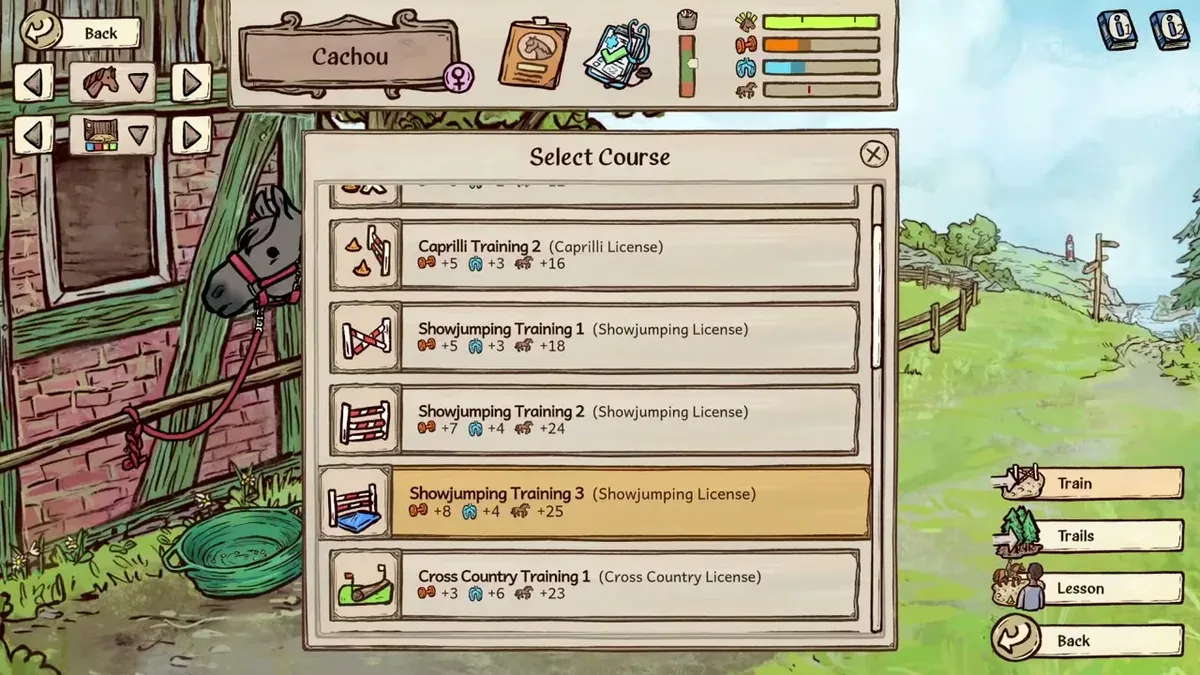
Horses of Hoofprint Bay controller support at launch
The publisher’s release-week answer on Horses of Hoofprint Bay controller support was clear: proper controller support had not been implemented. That matters if you want to play from the couch, because the available Steam Deck approach requires remapping and some touchscreen interaction. For players considering the November 4, 2026 full release, controller support therefore comes down to understanding keyboard-and-mouse emulation and its limits.
As of November 5, the publisher’s guidance describes Steam Deck play as possible with adjustments, noting that the game’s artist uses the handheld. The publisher’s release-week FAQ provides specific control suggestions, including a keyboard-and-mouse scheme and an Escape shortcut.
| Input option | Release-week status | What it means for you |
|---|---|---|
| Native controller support | Proper support had not been implemented | Do not assume every screen has gamepad navigation |
| Steam Input keyboard-and-mouse mapping | Publisher-described Steam Deck approach | Buttons emulate the inputs the game expects |
| Touchscreen interaction | Useful alongside mapped controls | Provides access to onscreen controls and pointer interactions |
| Keyboard and mouse | Basis of the suggested mapping | A controller layout needs to reproduce these actions |
The distinction matters during an ordinary session. Getting movement and jumping working does not establish that care tools, lesson controls, and menus all work comfortably with the same buttons.
Steam Input translates your physical controls into keyboard or mouse actions. It can make handheld play practical, but that translation does not itself add a complete controller interface to the game.
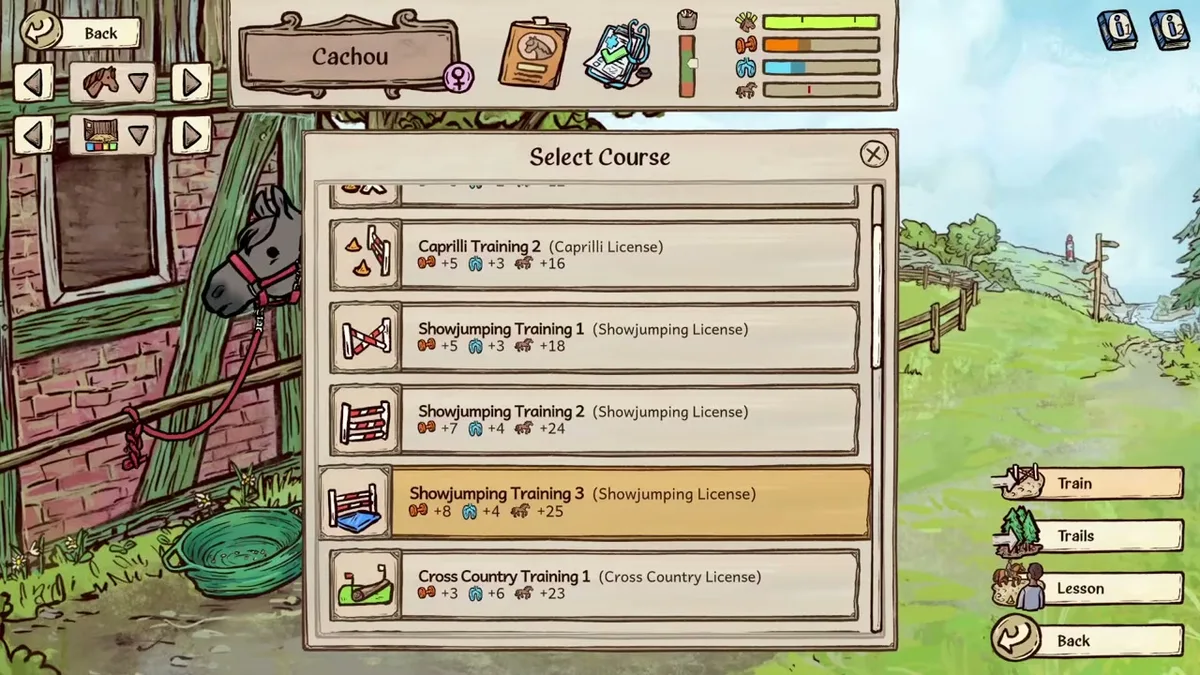
Unaltered gameplay still from JayPlays’ full-release video. General visual context, not proof of an undocumented mechanic. Image source.
Full-release gameplay and in-game handbook: Horses of Hoofprint Bay FULL RELEASE! Starting Our Horse Stable! 🐎 — Rohara, November 4, 2026. English-language reference footage. Specific handbook claims link to their observed timestamps; other uses are general game reference, not a device benchmark or proof of a bug fix.
Set up the publisher’s Steam Deck controls
The publisher’s Steam Deck guidance is the most concrete starting point for controller support. Begin with the WASD + Mouse control scheme, then check the actions below before committing to a longer session.
These mappings describe the publisher’s Steam Deck setup. They are not a universal button chart for every Xbox, PlayStation, or third-party controller.
| Action | Publisher-described Steam Deck input | Adjustment or limitation |
|---|---|---|
| Movement | Directional arrows or left stick | Use the WASD + Mouse scheme |
| Jump | A button | Check that the selected layout produces the expected action |
| Leave screens or tools | B mapped to Escape | Add this binding for convenient exits |
| Lesson arrow controls | Directional controls | Torso controls need separate attention |
| Torso controls during lessons | Map to back triggers, or use touchscreen | The basic arrow setup does not cover these |
| Pointer-based interaction | Touchscreen alongside the layout | Keep touch available for tasks the buttons do not cover |
Start by checking movement and jumping, then try opening and leaving a screen. Mapping B to Escape is particularly useful because it gives you a consistent way to back out of buildings, screens, or tools without reaching for a keyboard.
Next, check a lesson. The publisher specifically identified torso controls as an exception to the otherwise usable lesson arrows. Assign those actions to the Deck’s back controls if that suits you, or use the onscreen controls through touch.
Finally, try a care interaction that involves selecting or dragging something. A layout that feels comfortable while riding may still need pointer input elsewhere.
Do not treat a missing action as proof that the entire setup has failed. First identify whether it needs a keyboard binding, a mouse action, or touchscreen input. The publisher’s suggested layout already anticipates using more than one input method.
Handle care, lessons, and accessibility settings
Horse care is where the limits of controller support become especially relevant. Grooming, tools, and other onscreen interactions give you different input demands from riding, so leave room for touch in your handheld setup.
Earlier community reports, including demo experiences, describe players relying heavily on the touchscreen outside riding. Those reports help explain the practical approach, but they do not verify every interaction in the full release.
| Task or concern | Available approach | Evidence and limits |
|---|---|---|
| Care and onscreen interactions | Use touch where pointer input is needed | Community reports describe extensive touchscreen use |
| Torso actions in lessons | Add back-control bindings or use touch | Specifically covered by the publisher |
| Difficulty timing jumps | Enable auto-jump | Confirmed in the official FAQ |
| Competition challenge | Adjust competition difficulty | Confirmed difficulty option |
| Riding key preferences | Check rebinding options | Described in launch-day community reports |
The official Horses of Hoofprint Bay FAQ confirms auto-jump and adjustable competition difficulty. Auto-jump is useful if manually timing jumps makes an otherwise workable control setup uncomfortable. Difficulty settings also allow changes to prestige gains and penalties.
These options address different problems. A missing torso binding needs an input adjustment; difficulty settings cannot supply that binding. Conversely, a correctly mapped jump button may still feel demanding if timing is the issue.
Launch-day player experience describes riding with WASD and the spacebar, with rebinding available. Players also discuss actions that do not require holding a key continuously. Treat those observations as individual reports rather than a guarantee that every activity can be completed with the same input pattern.
For accessibility needs, test the specific tasks you expect to repeat: changing pace, jumping, selecting tools, leaving screens, and completing lesson inputs.
Troubleshoot Steam Deck input and display problems
Troubleshooting controller support starts with separating missing bindings from compatibility or display problems. The publisher offered several specific adjustments, but none establishes a universal fix or a measured performance target.
| Symptom | Suggested response | What the evidence establishes |
|---|---|---|
| Drag-and-drop fails | Try Proton Experimental | Publisher-suggested workaround for this problem |
| Screen flickers | Adjust FPS and VSync settings | Troubleshooting suggestion, with results dependent on setup |
| Unsure which FPS setting to try | Consider the suggested 60 FPS setting | A suggestion, not a verified benchmark |
| Cannot leave a screen conveniently | Map B to Escape | Publisher-described control adjustment |
| Torso input is missing in lessons | Add a back-control binding or use touch | Known gap in the basic lesson mapping |
| Capital letters fail on the onscreen keyboard | Recognize the reported keyboard limitation | No confirmed capitalization fix is provided |
Proton Experimental is specifically worth trying when dragging and dropping does not work. Avoid assuming that every input problem has the same cause: a lesson action that has no binding still needs a binding, even if other interactions work correctly.
For flicker, change an FPS or VSync setting and observe whether the behavior improves. The publisher mentioned 60 FPS as something to try. That is not evidence that the game maintains 60 FPS throughout play, and it should not be presented as a performance promise.
Text entry has a separate limitation. Community reports describe opening the Steam Deck keyboard with Steam + X, while both community feedback and the publisher mention trouble entering uppercase letters. The available guidance does not establish a reliable fix for capitalization.
Older demo discussions also contain mixed startup experiences, including successful launches and a black-screen report. Those accounts do not establish the cause of a full-release crash. Keep the reported version in mind when deciding whether an older troubleshooting comment matches your problem.
Decide whether the available setup suits you
If controller support determines whether you buy, use the demo to assess the input style before committing. The developer’s October demo announcement states that the demo remains available after release.
Choose the October demo when assessing the more recent version. The developer says October demo saves transfer to the full game, while February demo saves do not. The demo is limited to 25 in-game days; the full game allows unlimited days.
| Your preferred setup | What to expect | What to check first |
|---|---|---|
| Keyboard and mouse | The input style underlying the suggested Deck layout | Riding keys and pointer interactions |
| Steam Deck with touch | Publisher-described play with adjustments | Movement, jump, Escape, lessons, and dragging |
| External gamepad on a PC | No equivalent complete mapping is established here | Whether your layout covers keyboard and mouse actions |
| Mouse-only play | Complete mouse-only operation is unconfirmed | Riding and lesson requirements |
| Controller-only play without touch or mouse | The release-week guidance does not establish this | Every essential screen and interaction |
A useful demo check includes more than a short ride. Try horse care, a lesson, menu navigation, and text entry as well. That gives you a better indication of whether the combination of buttons and touch is comfortable for your needs.
The developer also demonstrated a custom saddle controller at Gamescom. That event setup does not establish ordinary gamepad compatibility or change the publisher’s release-week statement about proper controller support.
There is no confirmed controller-support release date in the available announcements. The official FAQ describes the game as a finished release without a content roadmap, while leaving room for bug fixes and minor requests. Base your decision on the controls available now.
FAQ
Does controller support include native gamepad controls?
The publisher said proper controller support had not been implemented in the release-week reply available as of November 5, 2026. Steam Deck play is possible through a WASD + Mouse mapping with adjustments and touchscreen use. That does not establish a complete native gamepad interface or an identical setup for every external controller.
Can you play Horses of Hoofprint Bay on Steam Deck?
Yes, according to the publisher, with adjustments. The described setup uses directional arrows or the left stick for movement, A for jumping, and B manually mapped to Escape. Torso controls during lessons need additional bindings or touch. The publisher’s description of playability should not be read as a claim of Valve’s Steam Deck Verified status or guaranteed performance.
Does auto-jump make the game fully playable with a controller?
Auto-jump helps with the timing of jumps, and the official FAQ confirms that the option exists. It does not add missing menu navigation, pointer controls, or torso bindings. Use it to address jump timing while separately checking whether your layout covers the other actions you need.
Can you play entirely with a mouse or avoid holding movement keys?
Complete mouse-only play is not confirmed. Launch-day community reports describe keyboard riding controls, rebinding, and some inputs that do not require a continuous hold. Those reports do not establish mouse-only access to every activity. If sustained key presses are a concern, test riding, lessons, and care in the October demo, with auto-jump enabled where helpful.
What should you read next?
Return to Platforms & Controls or the wiki homepage to choose another topic.
Related Articles
platforms
Horses of Hoofprint Bay: Platforms: Windows, Linux & Consoles
Compare Horses of Hoofprint Bay platforms, including Steam Windows and Linux support, plus what is confirmed for Mac, mobile, consoles, and Steam Deck.
platforms
Horses of Hoofprint Bay: Steam Deck Setup & Controls
Set up Horses of Hoofprint Bay on Steam Deck with publisher-backed controls, Proton troubleshooting, and clear details on controller support.
Was this helpful?
Thanks for the feedback!